> ## Documentation Index
> Fetch the complete documentation index at: https://docs.incentiv.io/llms.txt
> Use this file to discover all available pages before exploring further.

# dApps Connectivity

The **Connect dApp** feature allows you to link your **Incentiv Smart Wallet** with decentralized applications (dApps) such as **Uniswap** through **WalletConnect**.\
Follow the steps below to connect securely and start interacting with dApps.

<Steps>
  <Step title="Step 1: Open the dApp You Want to Connect">
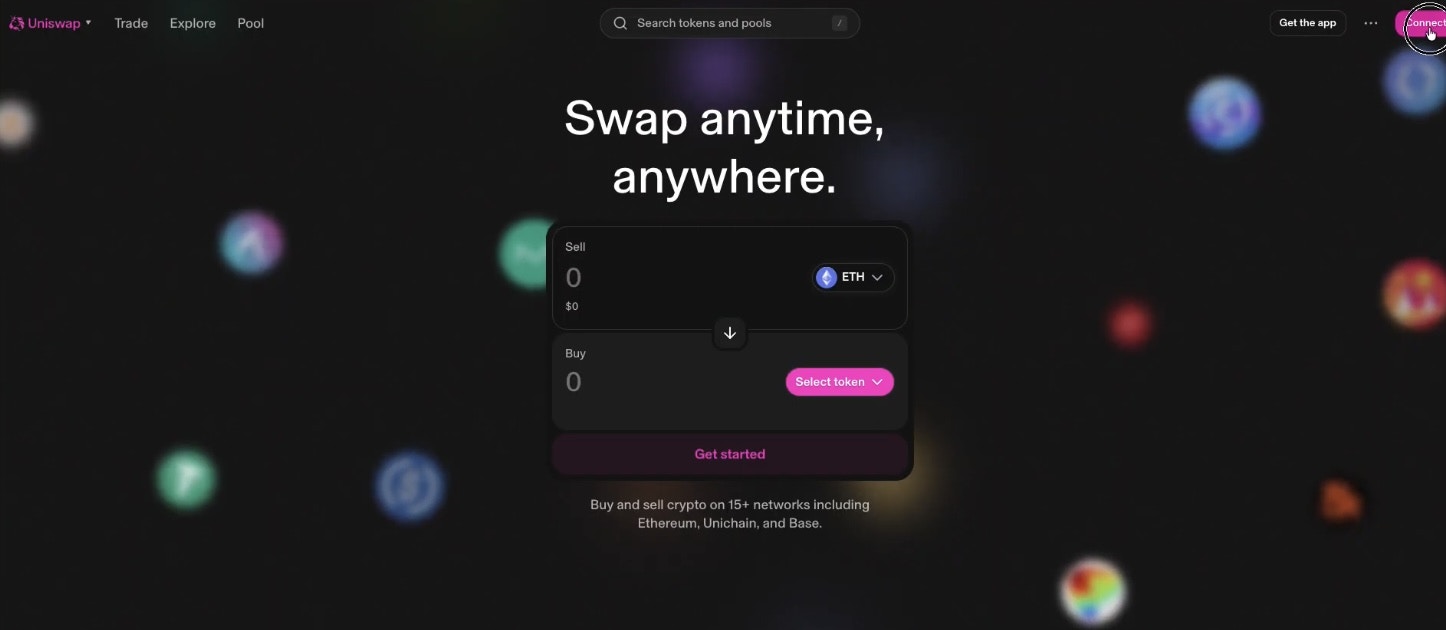
    1. Go to the dApp you want to use, such as **Uniswap**.
    2. Click the **Connect Wallet** button at the top-right corner of the interface.

           <img src="https://mintcdn.com/incentiv/F-1vZumRhGW9z7Iq/docs/images/ConnectdApp.jpeg?fit=max&auto=format&n=F-1vZumRhGW9z7Iq&q=85&s=e02bcc658af237bb414ba6649b11cc89" alt="Connect dApp Step 1" width="1446" height="630" data-path="docs/images/ConnectdApp.jpeg" />
  </Step>

  <Step title="Step 2: Choose WalletConnect">
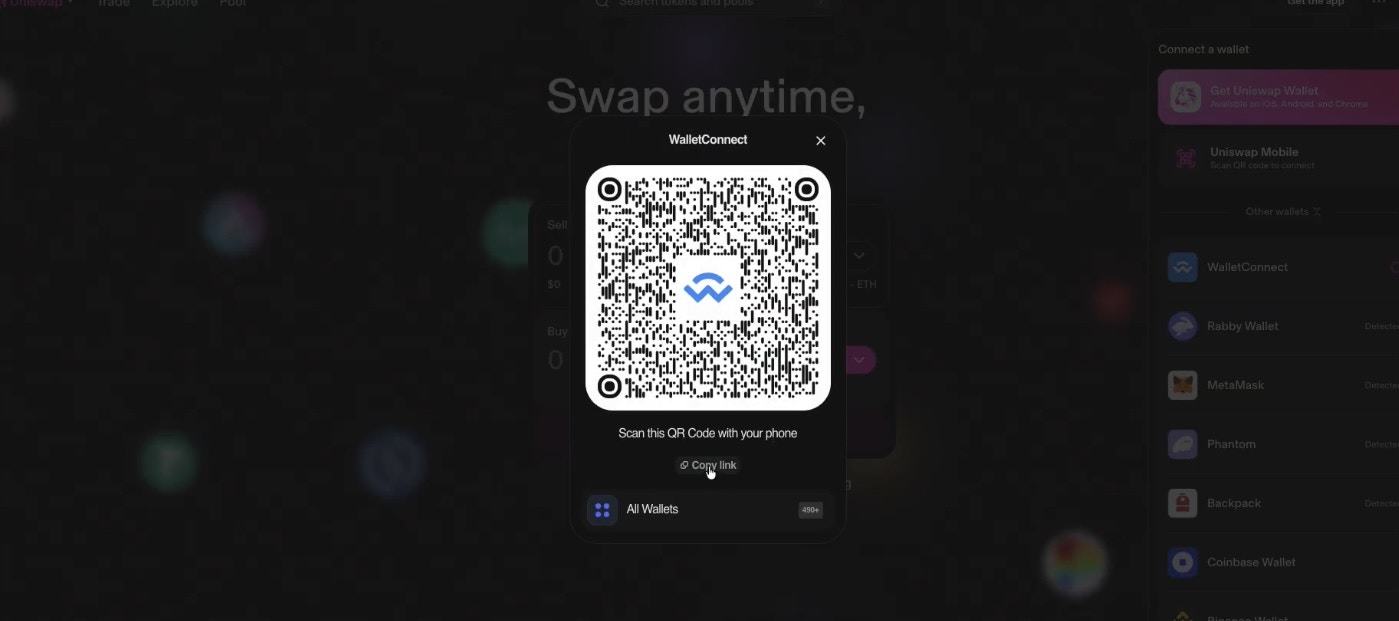
    1. When prompted to select a wallet, choose **WalletConnect**.
    2. A **QR code** will appear, keep this page open; you’ll use its **connection link** in the next steps.

           <img src="https://mintcdn.com/incentiv/jqJfItpDFcjItsvj/docs/images/ConnectdApp2.jpeg?fit=max&auto=format&n=jqJfItpDFcjItsvj&q=85&s=03009acd1ce0f5d0a904d7deb51ab67e" alt="Connect dApp Step 2" width="1399" height="621" data-path="docs/images/ConnectdApp2.jpeg" />
  </Step>

  <Step title="Step 3: Open the Incentiv Portal">
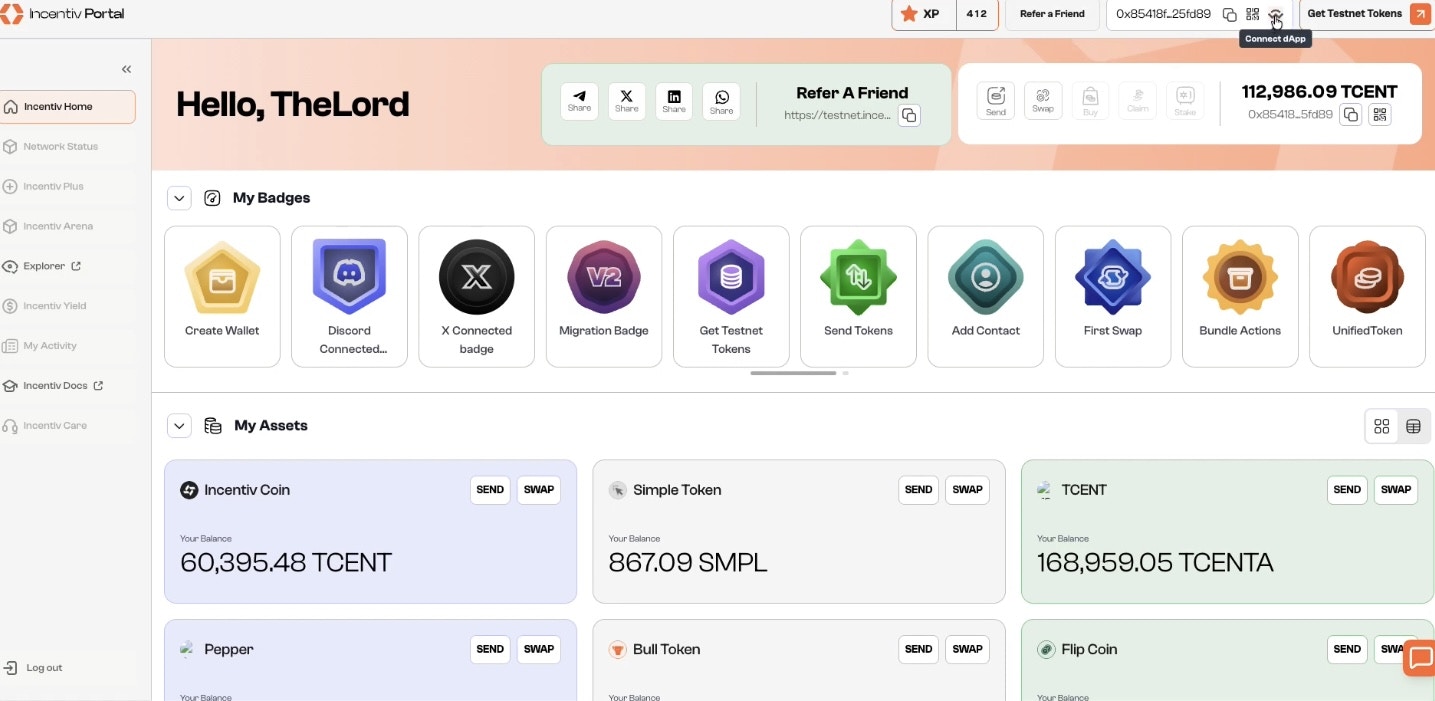
    1. Go to the **Incentiv Portal** page.
    2. On the top bar, click **Connect dApp** to open the **WalletConnect Sessions** panel.

           <img src="https://mintcdn.com/incentiv/ifuGRH0qXuCyBeWe/docs/images/ConnectdApp3.jpeg?fit=max&auto=format&n=ifuGRH0qXuCyBeWe&q=85&s=4cc87d5dd36f635af6f460a632e1c2fd" alt="Connect dApp Step 3" width="1435" height="701" data-path="docs/images/ConnectdApp3.jpeg" />
  </Step>

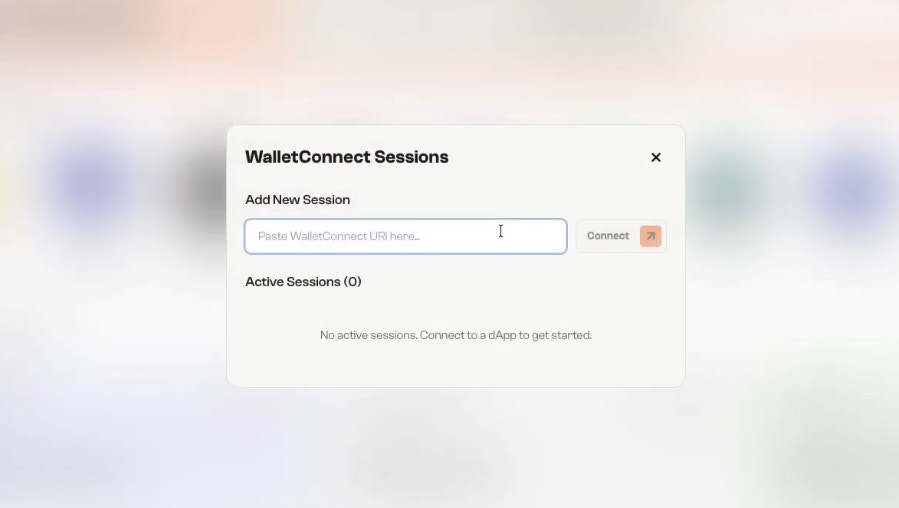
  <Step title="Step 4: Paste the WalletConnect URI">
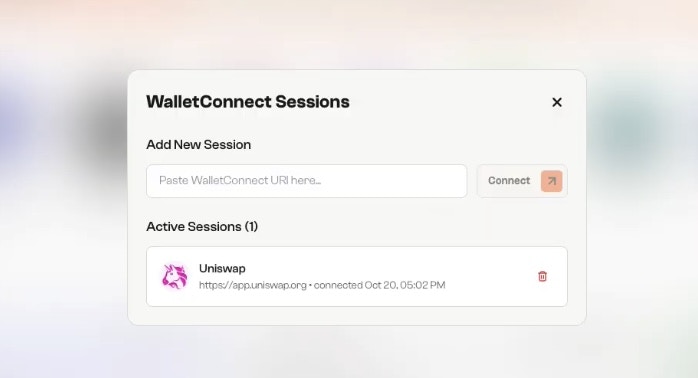
    1. From the dApp page, copy the **WalletConnect link** shown under the QR code. 2.Paste it into the **Add New Session** field in your Incentiv portal and click **Connect**.

           <img src="https://mintcdn.com/incentiv/SKvkr36g7ddgnoIo/docs/images/ConnectdApp4.jpeg?fit=max&auto=format&n=SKvkr36g7ddgnoIo&q=85&s=e6732ce0439b86d9a68fa82bbb5e3177" alt="Connect dApp Step 4" width="899" height="508" data-path="docs/images/ConnectdApp4.jpeg" />
  </Step>

  <Step title="Step 5: Confirm Connection">
    Once connected, your session will appear under **Active Sessions**, showing the dApp’s name and connection time.

    You’re now ready to use your Incentiv Smart Wallet across the dApp ecosystem.

    <img src="https://mintcdn.com/incentiv/SKvkr36g7ddgnoIo/docs/images/ConnectdApp5.jpeg?fit=max&auto=format&n=SKvkr36g7ddgnoIo&q=85&s=6f62b7d26d0ff31803ffef99af0634fc" alt="Connect dApp Step 5" width="698" height="378" data-path="docs/images/ConnectdApp5.jpeg" />
  </Step>
</Steps>

# Video Tutorial: dApp Connectivity
<iframe width="560" height="315" src="https://www.youtube.com/embed/PYl0RfaTGcI?si=tWjuEwxMaI5c1DIx" title="YouTube video player" frameborder="0" allow="accelerometer; autoplay; clipboard-write; encrypted-media; gyroscope; picture-in-picture; web-share" referrerpolicy="strict-origin-when-cross-origin" allowfullscreen />